
- During the installation process, you must agree to the installation of DES Offline mode component and IIS Express (only if the installation program detects that you need to install it).
- Only users with the appropriate permissions can use the offline mode, those who have the allow offline mode option enabled.
- Logging in to the application takes a while because the offline component is launched.
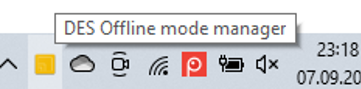
- The correct launch of the offline mode is shown by an icon in the windows taskbar. This component does not close until the computer is turned off - this allows you to continue any background analysis after closing the Desktop App.
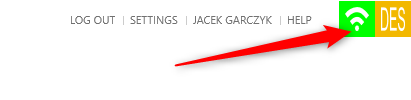
- In the desktop app, we can switch between online and offline modes by clicking on the icon in the upper right corner of the screen.
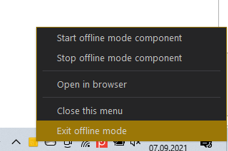
- The user can manually exit the offline component on his computer by right-clicking the (DES Offline mode manager) icon and selecting Exit offline mode.
- The program works the same in both modes. There is only one major difference, in offline mode files are faster transferred to the deflectionmonitor library repository.
- There is no limit to the size of the source video file.
- The csv and output video files are downloaded in the same way.
First login to the application after installing offline mode
- For correct work in offline mode, data download from the server is required. This happens after an authorized user logs in for the first time.
- We are transferred to the data synchronization screen from the server. This synchronization must be performed, without this offline mode will not work properly. The sychronization process takes several seconds.
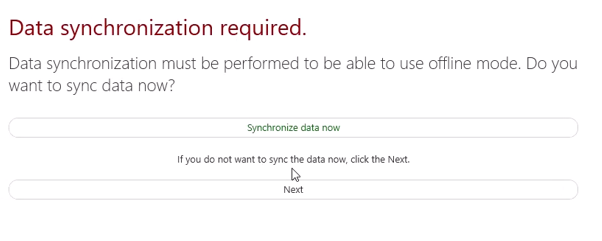
- During synchronization, deflectionmonitor library is downloaded to the computer - it is not distributed before.
- This means that only logged in users receive it, with the right to use offline mode.
Comments
0 comments
Please sign in to leave a comment.