
Description of the users tab
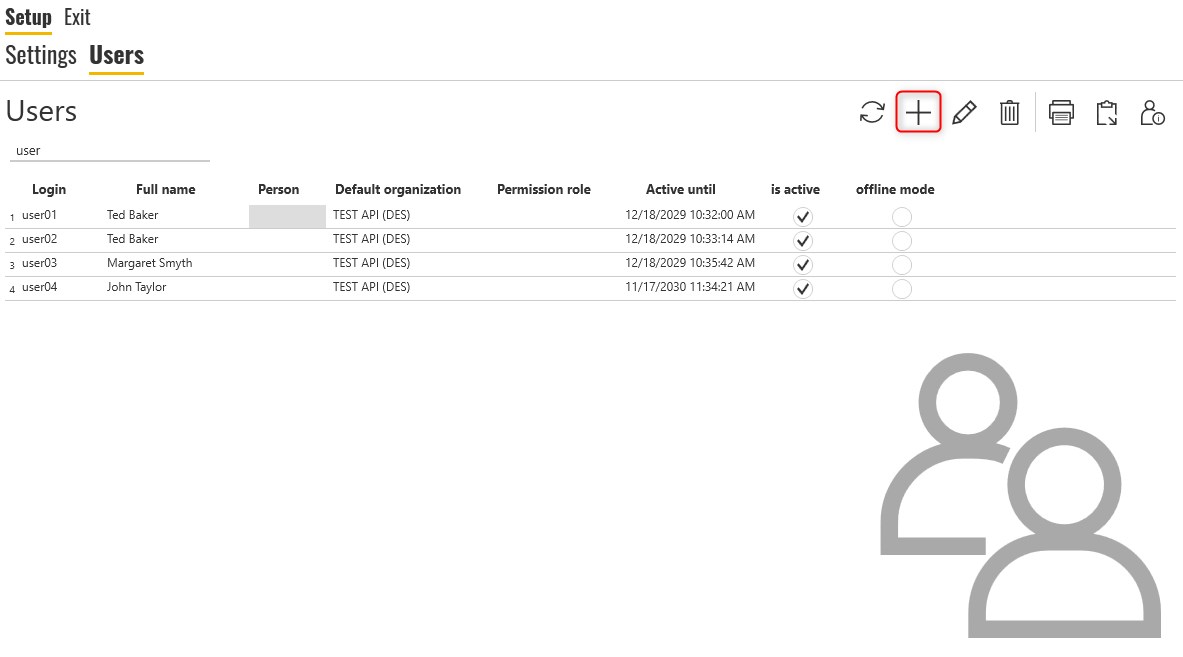
The users tab allows you to view the list of users in the system and edit them, after double-clicking on a given user, the details of the selected user will be displayed.

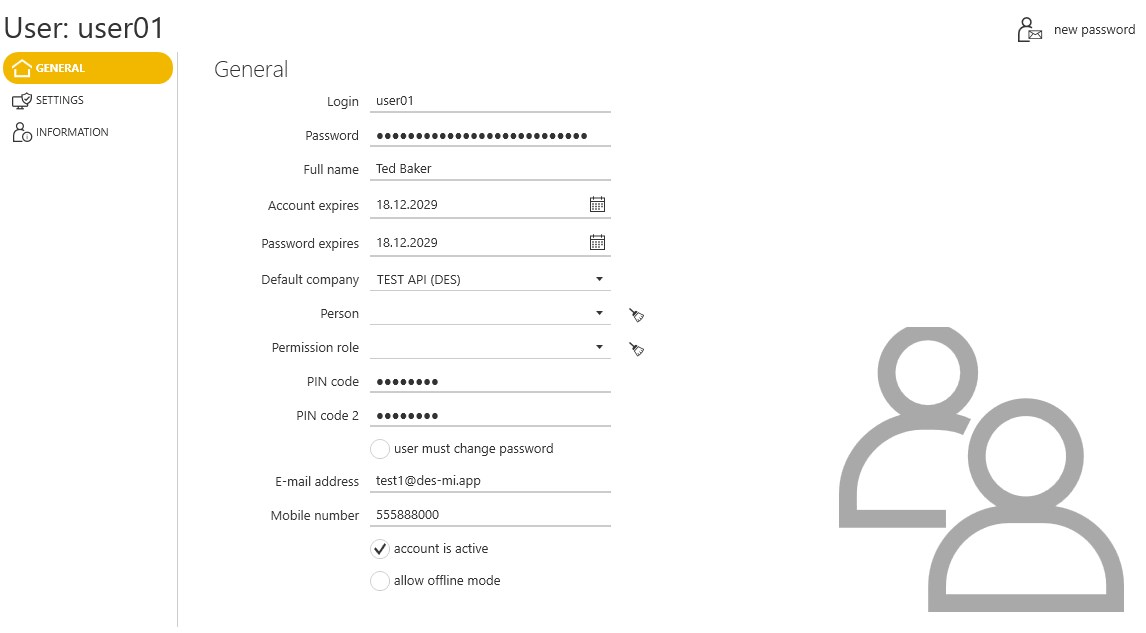
Login - unique login of the user, consists of the first letter of the first name and the rest is the user's last name
Full name - name and surname of the user
Account expires - here you can set the validity of the account
Password expires - here you can set the validity of the user password
Default company - the default company that is visible after logging in
Permision role - here you can change user role in the system
User must change password - this option forces a password change when logging into the system
account is active - disabling this option will make the user account inactive
allow offline mode - enabling this option allows the user to access offline mode
How to add a new user
Click on the "plus" icon.
In the general tab, enter the user's login, full name, which company the user will have access to, what role the user will be assigned, e-mail address for notifications sent from the system, phone number for SMS notifications.
The fields underlined in red are mandatory fields without which it is not possible to create a user.
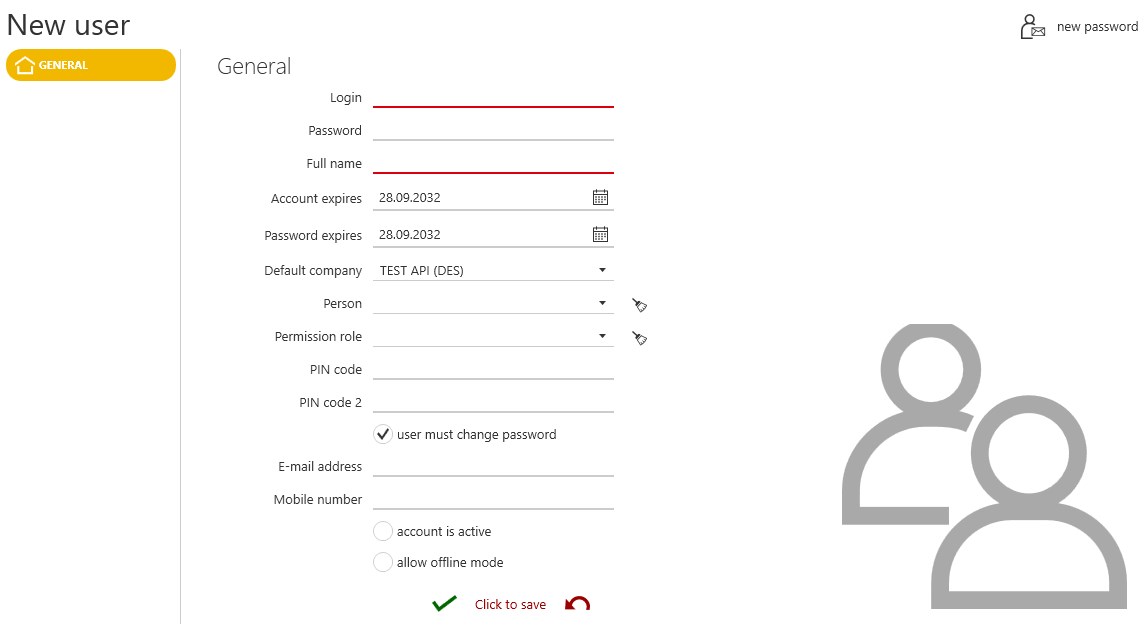
Remember that the "account is active" option should be selected.
When the information is complete, click the "save" button.
The next step is to send the password to the user's e-mail address.
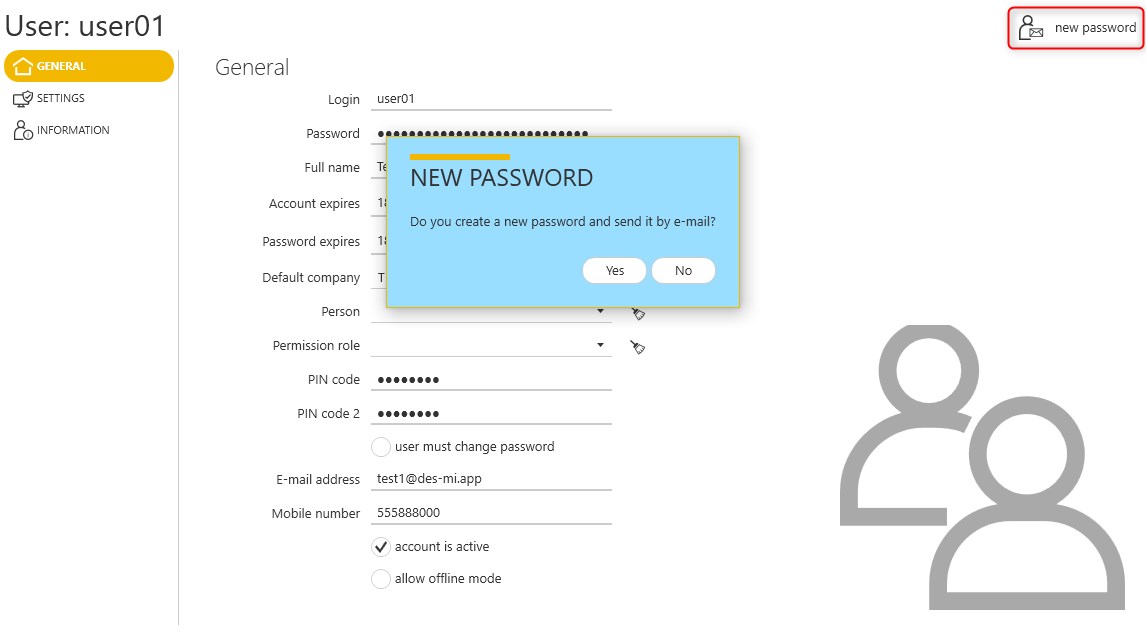
After clicking the "new password" button, a password will be generated and sent to the e-mail address.
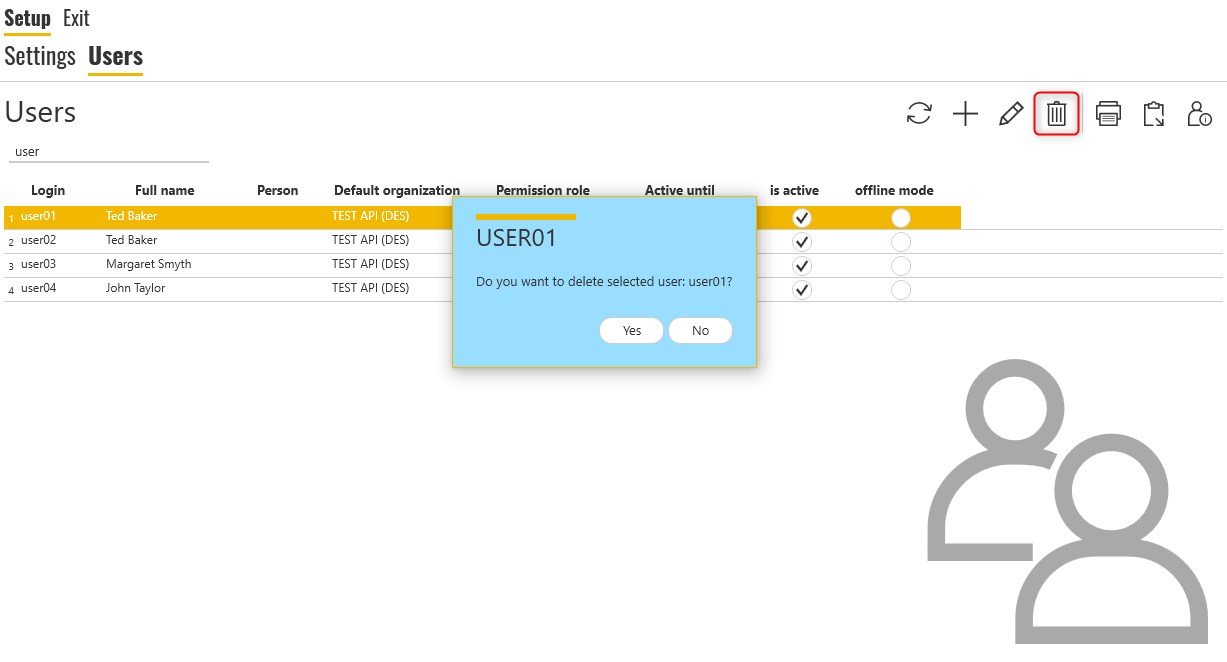
If you want to delete a user, click on the trash can icon.
Comments
0 comments
Please sign in to leave a comment.